Now Reading: How to Install Python on Windows, Mac, and Mobile – Step-by-Step Guide
- 01
How to Install Python on Windows, Mac, and Mobile – Step-by-Step Guide

Written by Hamza Sanaulla
How to Install Python on Windows, Mac, and Mobile – Step-by-Step Guide So, you’ve decided to learn how to code, or perhaps you’re scaling up an automation project to handle annoying spreadsheet tasks. Either way, choosing Python is the single smartest move you can make this year. It runs the underlying engines of modern machine learning networks, powers massive backend architectures, and acts as the foundational toolkit for data scientists worldwide.
But before you write your very first line of code, you need to know how to install Python correctly on your device. For absolute beginners, this initial setup process is where many people get stuck. How do I install Python on my computer without messing up my system settings? Is the process completely different on a sleek Windows 11 machine compared to an older Mac? Can you actually write real code on an Android phone or an iPad while sitting on a train?
In this complete guide on how to install Python, we’ll walk through the exact, step-by-step process to download and configure Python cleanly across Windows, Mac, Android, and iPhone. You’ll also learn how to verify your installation, fix common setup errors, and run your first Python script successfully.
How to Install Python on Windows, Mac, and Mobile?
The Python programming language is an open-source, high-level, interpreted language. Unlike compiled languages like C++ or Java, where your computer must translate the entire program into machine code before running it, Python relies on a Python interpreter. The interpreter processes your code line by line, executing commands in real-time. This dynamic nature makes it an incredible asset for rapid prototyping, data experimentation, and general software development.
When you download the software, you aren’t just getting a blank text file to type into; you are installing an entire coding environment. This package gives your machine the native intelligence to understand Python syntax, run complex Python scripts, and manage external modules that expand what your code can accomplish.
Benefits of Learning Python
If you are pursuing a modern Python learning roadmap, you are positioning yourself for an array of technical advantages. The language boasts a clean, highly readable syntax that closely resembles English prose. This syntax structure allows you to focus heavily on solving logical problems rather than fighting with archaic semicolons and curly brackets.
Furthermore, setting up your system opens the door to a massive global ecosystem. Through the built-in Python package manager, universally known as pip, you instantly gain access to hundreds of thousands of open-source packages. Whether you want to scrape web data, analyze financial patterns, or build custom desktop utilities, someone has already written the core framework for you. All you need is a running environment to tap into it.
System Requirements for Python Installation
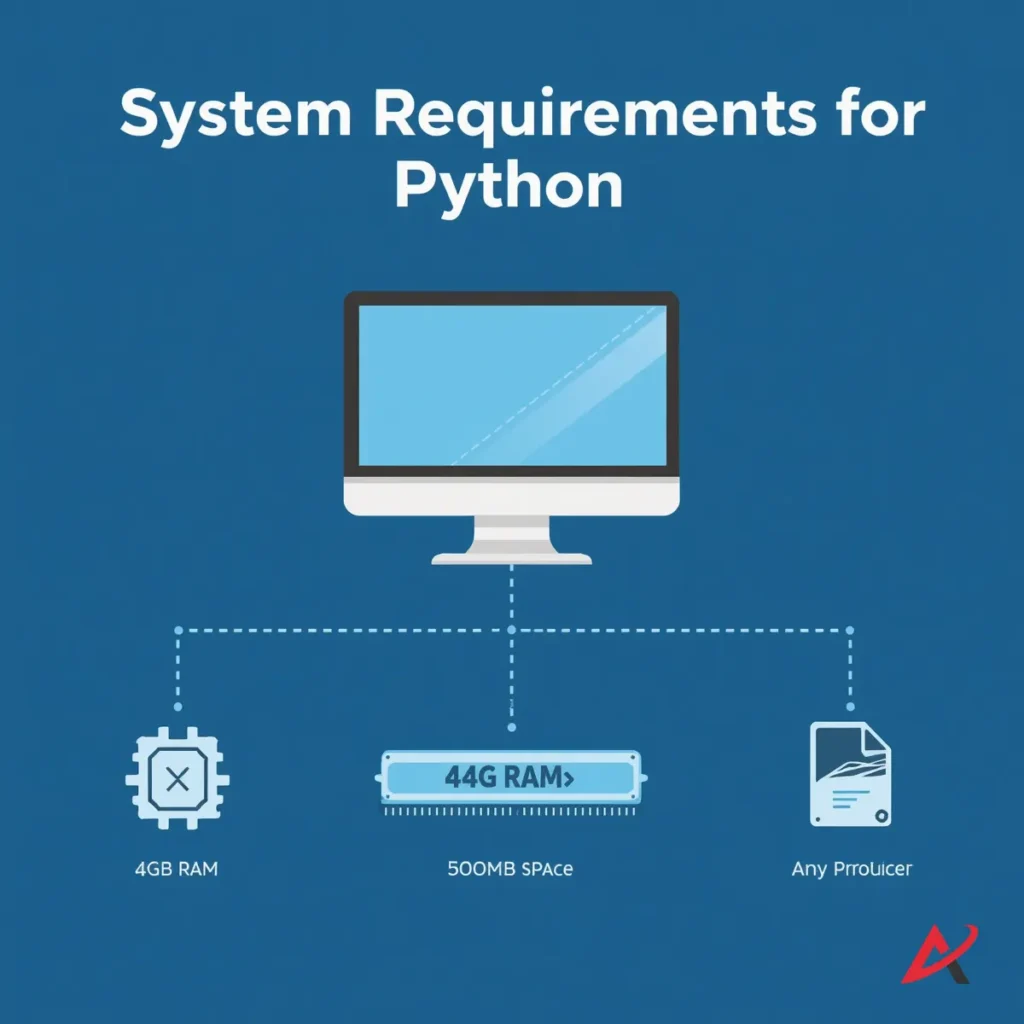
Fortunately, the software demands very little from your hardware. The Python software requirements are remarkably lightweight, meaning you do not need a high-end gaming rig or a top-tier workstation to build software.
- Operating System: Windows 10 or 11, macOS 10.15 (Catalina) or newer, Linux, or recent mobile operating systems.
- Processor: Any modern Intel, AMD, or Apple Silicon processor.
- RAM: A minimum of 4 GB is recommended, though the core interpreter can run comfortably on much less.
- Disk Space: Less than 500 MB for the base installation, though you will want extra space for third-party libraries and code editors down the line.
How to Install Python Step by Step on Windows
Setting up an environment on Windows used to be a headache plagued by missing paths and command-line errors. Today, the process is streamlined. Whether you want to install Python on Windows 11 or a Windows 10 system, this process works beautifully on both a desktop PC and an install Python on laptop workflow.
Download Python from the Official Website
To get started, open up your preferred web browser and navigate directly to the official Python download platform at python.org. The website is built to read your browser’s user agent string and automatically recommend the absolute best build for your operating system.
Look for the primary download button, which will display the current release, such as Download Python 3.13. Click this link to download the executable Python setup file (usually named something like python-3.13.x-amd64.exe) straight to your local storage.
Run the Python Installer
Once your browser finishes downloading the Python installation package, minimize your browser window and locate the file inside your downloads directory. Right-click the executable file and select “Run as administrator” to start the installation wizard. This ensures the installer has the system clearances required to configure your system properly.
Enable Add Python to PATH
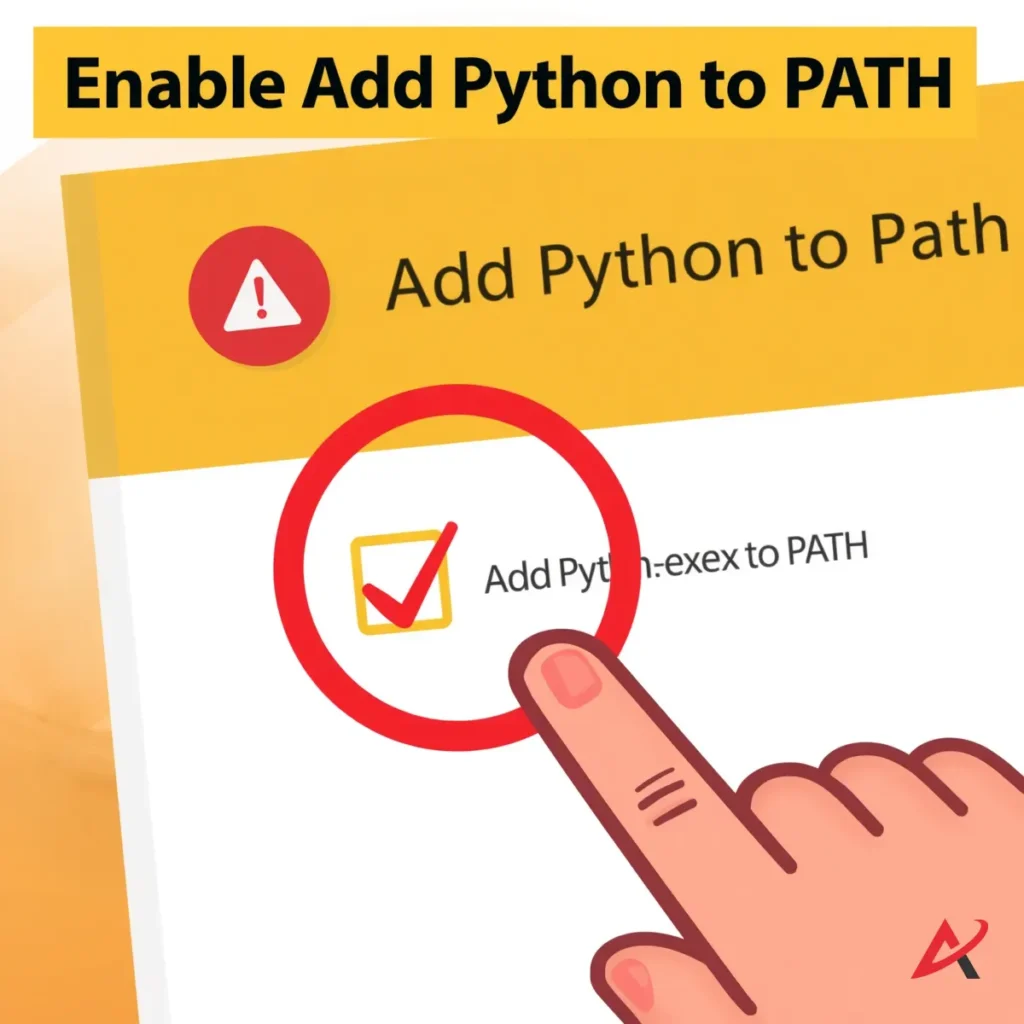
CRITICAL WARNING: Before you click any button inside the setup wizard window, look down at the bottom of the dialogue box. You will see an unchecked option labeled Add python.exe to PATH. You must check this box.
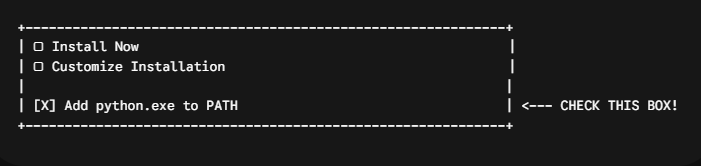
Skipping this checkbox is the number one reason beginners run into errors when attempting to use the command line later. By enabling this option, you perform a critical Python PATH configuration, telling Windows exactly where the interpreter executable lives so you can access it seamlessly from any folder on your machine.
Complete the Installation Process
With the PATH box securely checked, click on the Install Now option at the top of the window. The wizard will begin moving files into your system directories.
Near the very end of the installation bar, the installer may show a prompt asking to disable the path length limit. Click this option if it appears; it prevents Windows from throwing errors if your future project files happen to be buried deep inside nested folders. Once you see the Setup was successful confirmation message, click Close.
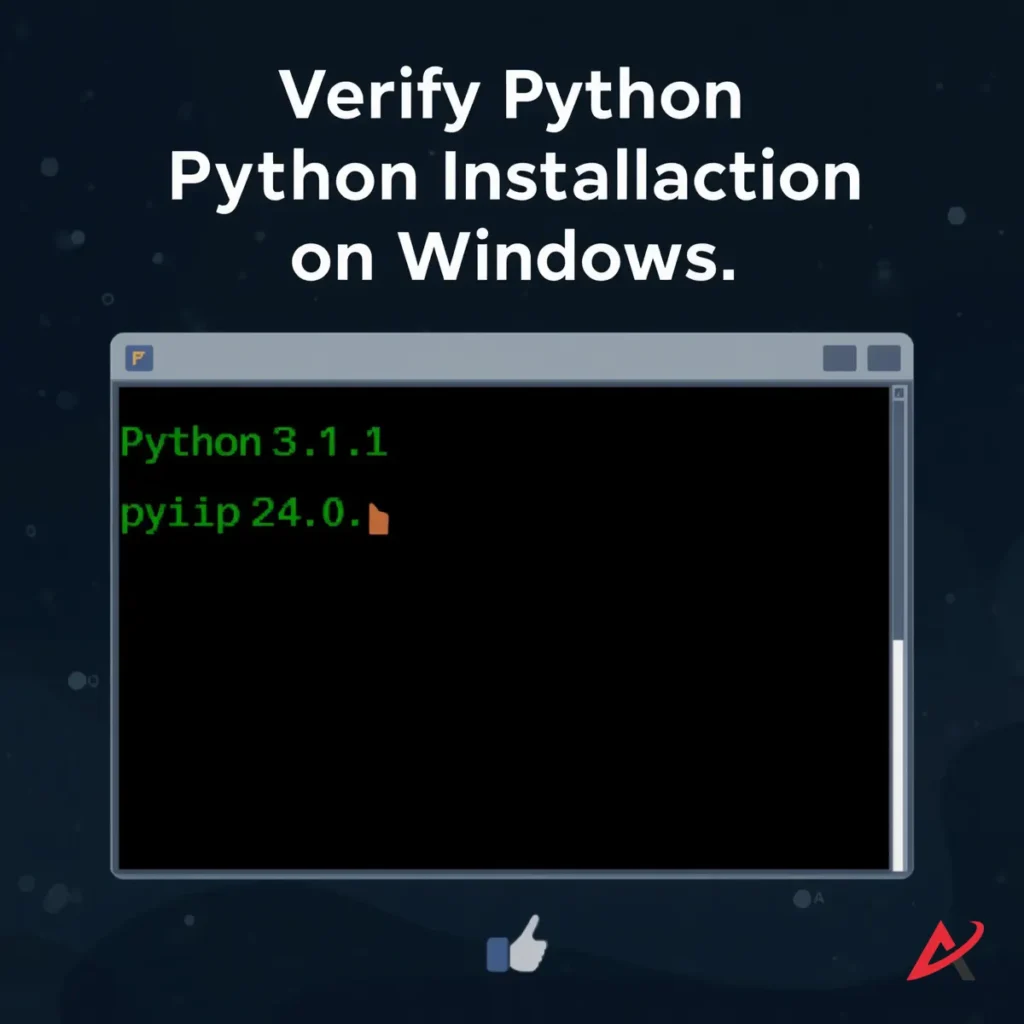
Verify Python Installation on Windows
Let’s make sure everything works. Press your Windows Key, typecmd, and hit Enter to launch the Command Prompt.
Inside the terminal window, type the following command to check your installation state:

Press Enter. If the prompt displays your exact version number, your installation was successful. Next, make sure your package manager is configured properly by typing:

If both commands print out text detailing version numbers and folder paths, you have completed the full Python programming setup on Windows without any errors.
How to Install Python Step by Step on Mac
Apple computers are deeply favored by developers because macOS is built on top of a Unix foundation, giving you a native terminal environment right out of the box. However, managing versions on Mac requires a touch of precision to prevent conflicts with native system scripts.
Check Whether Python Is Already Installed
Older versions of macOS shipped with an ancient iteration of Python 2 permanently baked into the operating system core. Modern macOS iterations leave this out entirely.
To see where your machine stands, launch your native Terminal app (pressCommand + Space, type Terminal, and hit Enter). Input the following command and hit Enter:

If your system returns an error message or reveals an outdated sub-version, it’s time to run a clean installation to build a modern Python development environment.
Download the Latest Python Version for macOS
Head to the Official Python macOS Downloads Section using Safari or Chrome.. Hover over the downloads menu and select macOS. Click the link to download the latest version of the universal installer package. This setup package is designed to run natively on both classic Intel processors and Apple Silicon architecture (M1, M2, or M3 chips).
Install Python Using the Package Installer
Locate your downloaded .pkg File and double-click it to start the guided wizard. Click through the standard license agreements and choose your primary hard drive for installation. You will be prompted to enter your Mac user account password to grant system access.
Alternatively, if you are a developer who likes maintaining absolute control over your applications, you can choose to skip the raw package entirely and use Homebrew, the unofficial package manager for Mac. Here is how the two primary methods stack up against each other:
| Redownload the modern installer from the site | Target Audience | Key Benefit | Update Command |
| Official .pkg File | Absolute Beginners | Simple, guided point-and-click wizard installation. | Redownload modern installer from site |
| Homebrew Terminal | Intermediate / Advanced | Extremely clean file management; avoids clutter. | Redownload the modern installer from the site |
If you choose the Homebrew route, you simply paste brew install python into your Terminal window, and the platform handles the download and path matching automatically.
Verify Python Installation on Mac
Once your chosen installation path finishes, return to your Terminal window. To verify Python installation actions on a Mac, you must intentionally append a 3 to your terminal commands. Type the following:
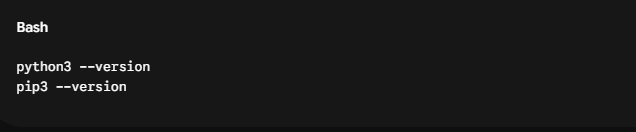
Using python3 instead of python tells your Mac to explicitly pull up your newly added version rather than searching for legacy configurations.
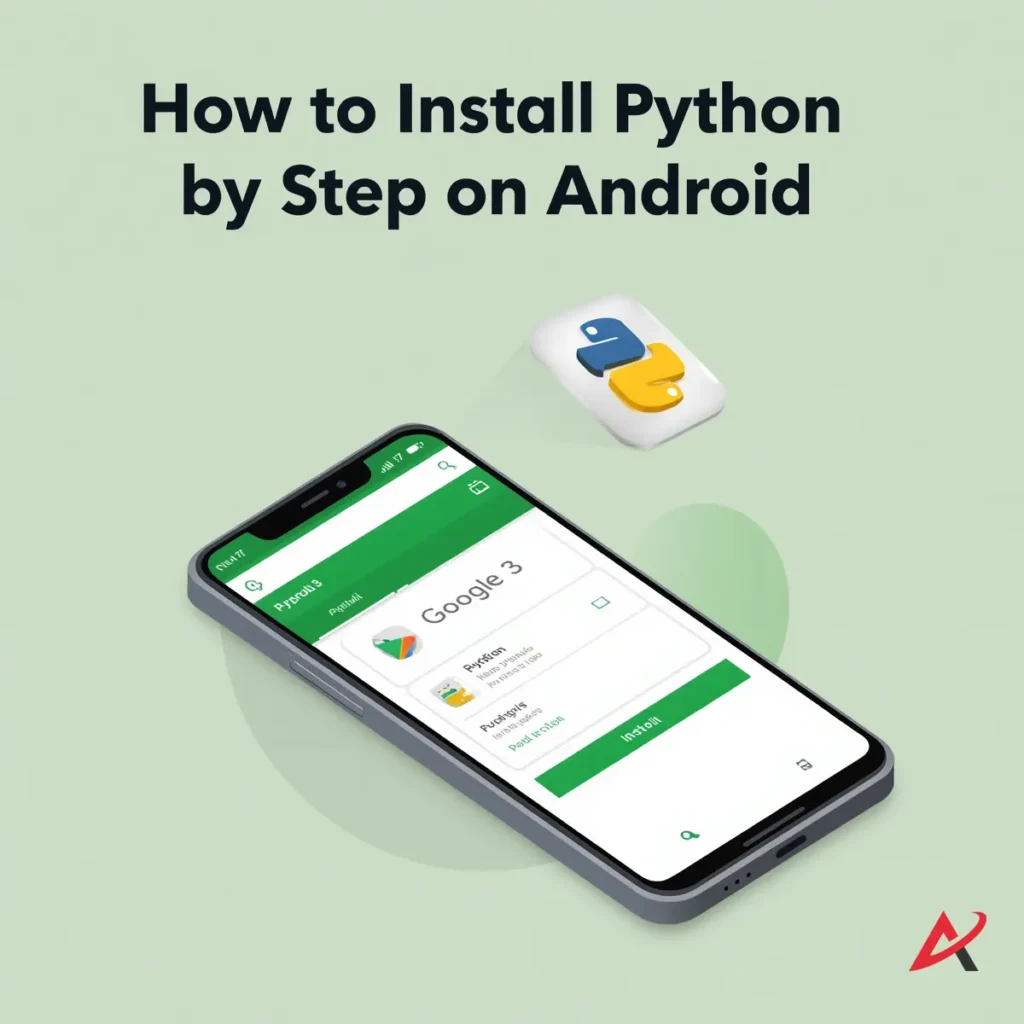
How to Install Python Step by Step on Android
You do not need a computer to start mastering code syntax. Modern smartphones have more than enough processing power to run local environments, allowing you to practice data logic or script building while away from your desk.
Install Python Using the Pydroid 3 App
The cleanest, easiest way to install Python on an open mobile framework is through a dedicated sandbox application.
- Unlock your device and open the Google Play Store.
- Tap the search bar, look for the Pydroid 3 App on Google Play, and select the app developed by IIEC.
- Tap Install to download the application package to your mobile device.
Set Up the Python Environment
Once the installation finishes, tap the application icon to launch Pydroid 3. Upon your first launch, the app will execute an internal configuration sequence. It extracts a localized Python interpreter directly into the application’s isolated sandbox storage area.
The app will ask you a few initial setup questions regarding your coding goals. Select Learning or Hobbyist, and stick to the free tier options, which provide all the core execution engines you need to write and test code.
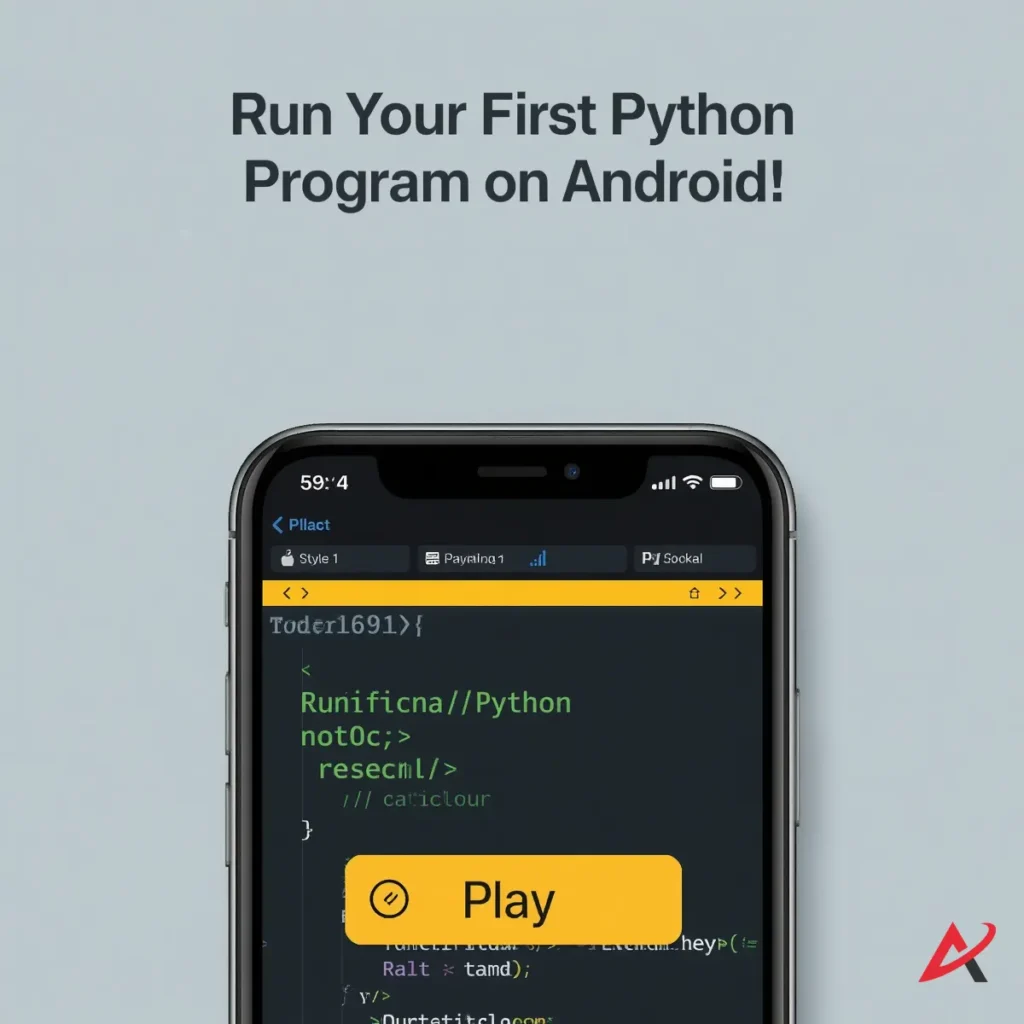
Run Your First Python Program on Android
Once the setup sequence finishes, you will look at a clean, dark-themed text editor layout. Type the following test line into the editor space:

Now, tap the big yellow Play button located in the bottom right corner of your screen.
The app will instantly split your screen to reveal a real-time terminal window outputting your text line, proving that your mobile Python setup for coding works perfectly.
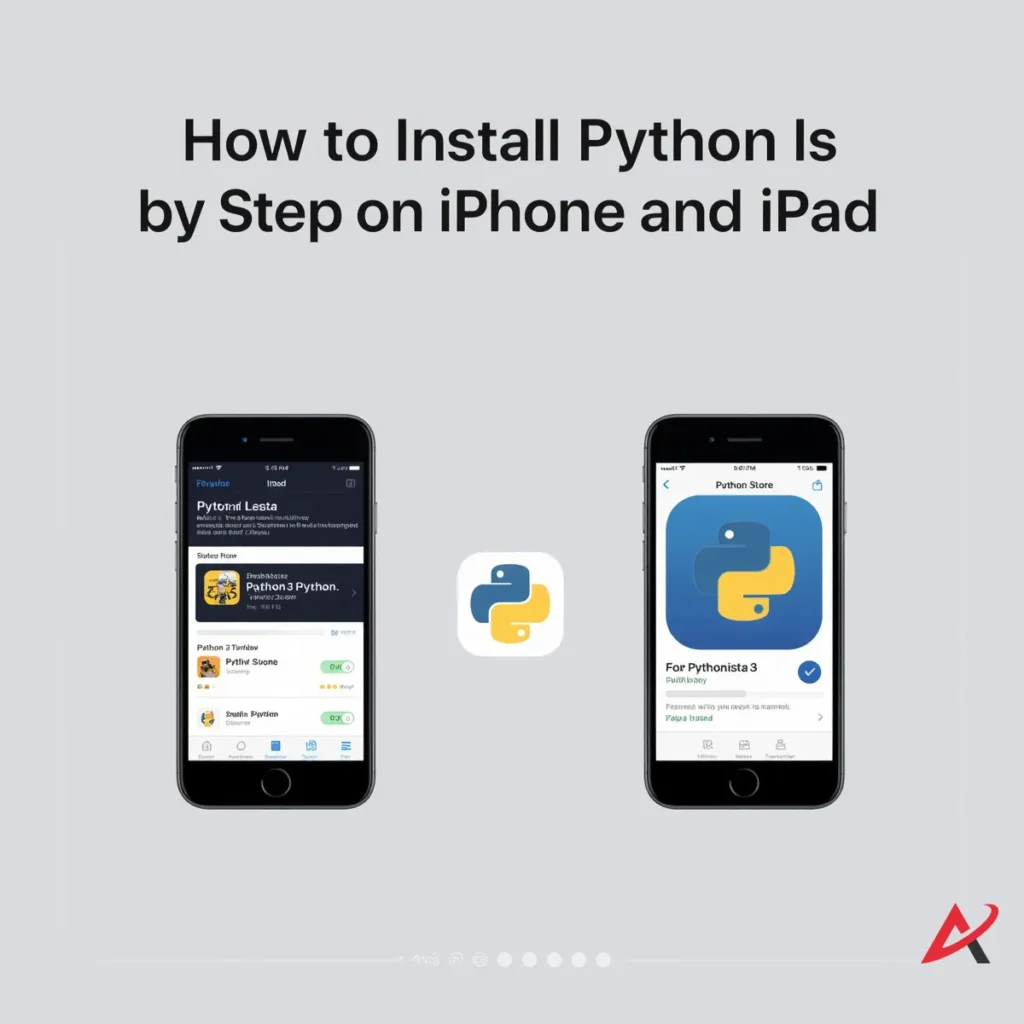
How to Install Python Step by Step on iPhone and iPad
The iOS ecosystem is notably more locked down than Android, meaning you cannot run a standard terminal environment natively inside the file system. However, excellent application wrappers allow you to run scripts seamlessly.
Download a Python App from the App Store
To get your hands on a running build on Apple mobile devices, you need an integrated app container from the official App Store.
- Open the App Store on your iPhone or iPad.
- Search for Pythonista 3 on the App Store (a premium, deeply integrated app) or look up Pyto as an alternative with robust open-source support.
- Tap the download icon to secure the software on your device.
Configure the Python Environment
Open your newly downloaded app. These programs establish a self-contained environment that complies with Apple’s strict sandboxing rules.
Inside the app interface, you will find an interactive folder layout. Spend a moment creating a dedicated project directory named Scripts To keep your workspace structured as you create new code files.
Execute Your First Python Script
Tap the New File option inside your app, choose a blank script template, and name it test.py. Type this simple line of code into the screen editor:
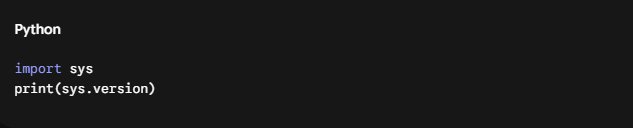
Tap the Run button (usually an arrow icon in the top toolbar). The script will run inside the app’s internal viewer, displaying the exact Python software version running inside your device’s sandbox.
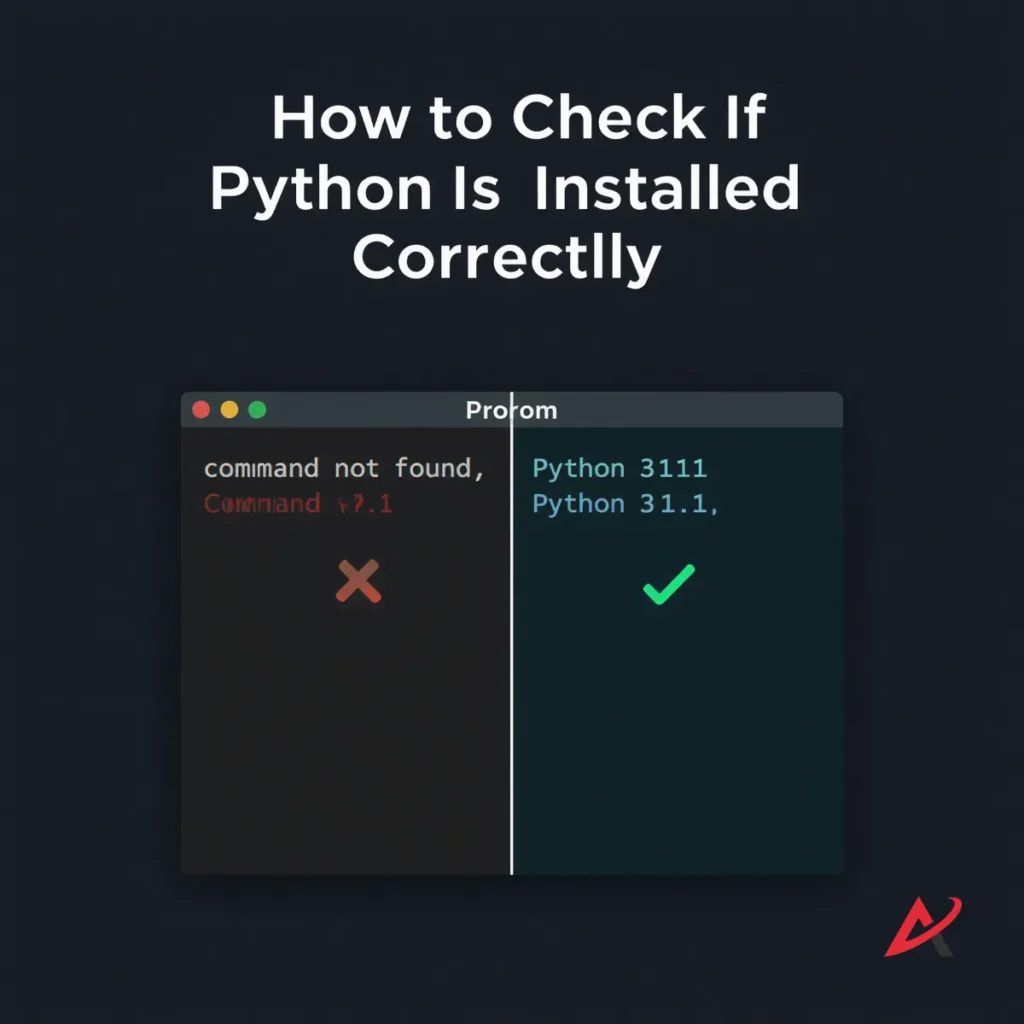
How to Check If Python Is Installed Correctly
Regardless of whether you completed a desktop setup or a mobile configuration, running a proactive health check ensures that your operating system and your new interpreter are communicating correctly.
Verify Python Version Using Command Prompt
Open your system’s primary terminal tool (Command Prompt on Windows, or Terminal on macOS). Input your verification flags to confirm deployment:
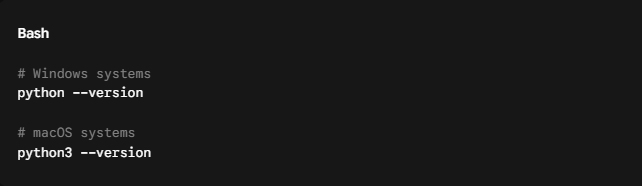
If your terminal window displays a clear text line like Python 3.13.1 (or whichever stable sub-version you selected), Your system environment is properly configured. If your screen returns an error saying the command can’t be found, you need to revisit your configuration steps.
Test Python with a Simple Program
Let’s step outside of version checks and execute a live script file. Create a basic text file on your desktop and name it hello.py. Open it using a basic text editor like Notepad or TextEdit, paste the following line inside, and save the file:
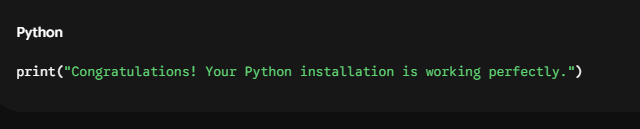
Now, return to your terminal program, navigate to your desktop directory using the change directory command (cd Desktop), and execute your file by typing:

Expert Insight: The hallmark of a properly installed environment isn’t just seeing a version number when you ask for it, notes seasoned software architect Marcus Vance. The real victory is ensuring your command-line tools can pull an external script file from a random folder and run it without throwing a path error.
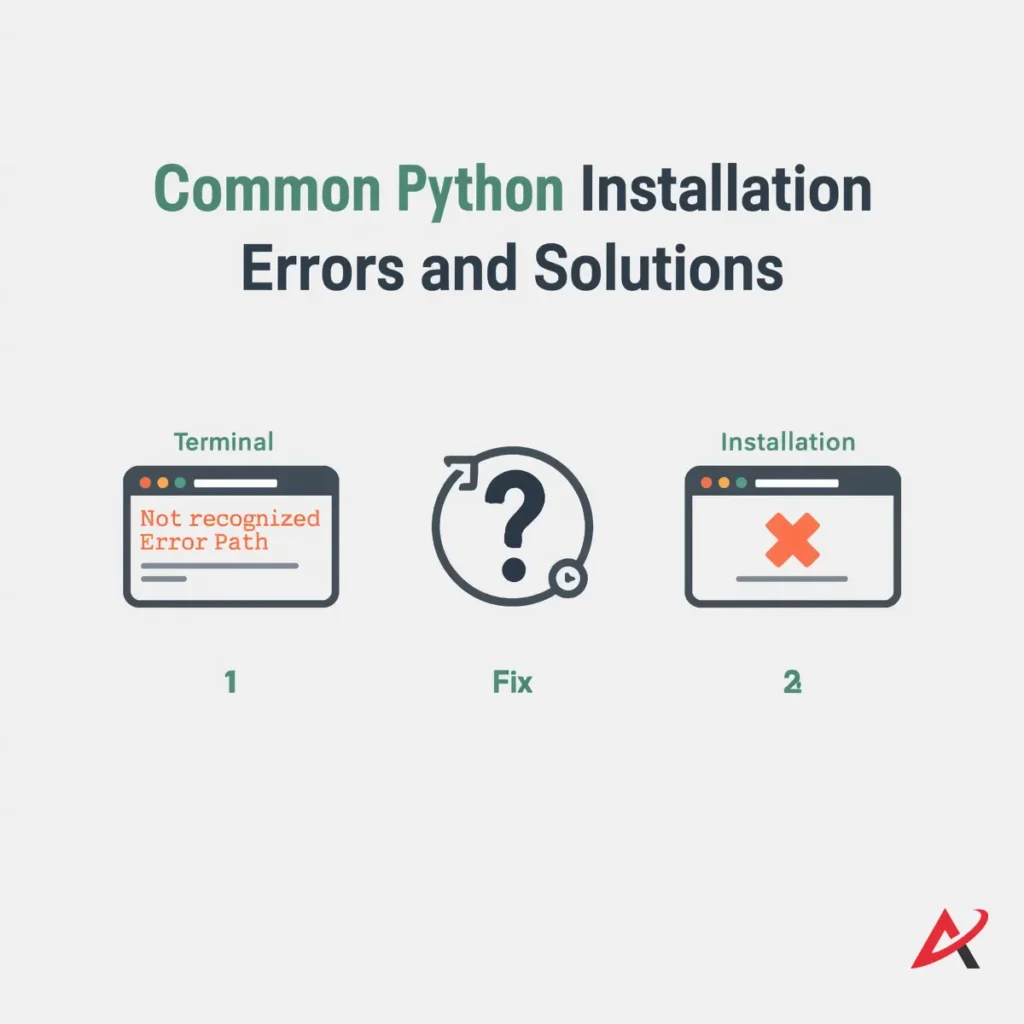
Common Python Installation Errors and Solutions
Do not feel discouraged if your first attempt at running code results in a cryptic terminal warning. Setup bugs are an everyday part of software engineering. Here is how to fix the three most common snags.
Python Command Not Recognized
- The Symptom: You type
pythoninto your terminal and hit Enter, but your screen screams: python is not recognized as an internal or external command. - The Solution: This means your operating system cannot find the interpreter file. The fastest fix is to simply run your original installation file again. Click the Modify or Repair options inside the wizard window, and make certain that you check the box labeled Add Python to PATH before finishing the repair cycle.
PATH Variable Issues
- The Symptom: You accidentally installed Python without checking the PATH box, and you do not want to run the installer file all over again.
- The Solution: You can add the variable manually. Search for Environment Variables in your Windows search bar and open the system properties menu. Click the Environment Variables button at the bottom. Under User Variables, find the variable named
Path, select it, and click Edit. Click New, and paste the direct file directory where Python was installed on your drive (usually deep inside yourAppData\Local\Programs\Pythonfolder).
Installation Failed Error
- The Symptom: The setup wizard halts mid-progress and throws an absolute termination code or a permission restriction error.
- The Solution: This usually points to an active permission conflict or a block from a security program. Close out of the installer, restart your computer, locate the installation package, right-click the file icon, and choose “Run as administrator.” If it fails again, check to see if your operating system has pending system updates that require a reboot.
How to Update Python to the Latest Version
The core software is constantly evolving, with new versions rolling out to introduce fresh syntax features, performance enhancements, and crucial security updates. Keeping your system updated ensures you can run modern libraries without compatibility issues.
Update Python on Windows
Updating on a Windows computer is simple. Go back to the official download page and secure the newest available installation package. Run the executable file. The installer wizard will read your hard drive, identify your older version instance, and display a prominent Upgrade Now button. Click that option, and the software will safely replace your older core files while preserving your global environment preferences.
Update Python on Mac
If you originally installed the software using the guided package file, you can update it by downloading and running the newest .pkg file from the official site. If you used Homebrew to manage your tools, the update process is even faster. Simply launch your Terminal app and execute this single line:

Homebrew will download the newest files, clean out your outdated version paths, and automatically re-link your system paths to point to the newest interpreter.
Update Python on Mobile Devices
Mobile layouts are the easiest to maintain over time. To push an update to apps like Pydroid 3, Pythonista, or Pyto, simply launch your platform’s app store, Google Play Store or Apple App Store, navigate to your downloads dashboard, and tap the update option adjacent to the application icon. Your internal script files will remain safe within your app storage wrapper during the update.
Update Python on Mobile Devices
Mobile layouts are the easiest to maintain over time. To push an update to apps like Pydroid 3, Pythonista, or Pyto, simply launch your platform’s app store (Google Play Store or Apple App Store), navigate to your downloads dashboard, and tap the update option adjacent to the application icon. Your internal script files will remain safe within your app storage wrapper during the update.
Post-Installation: Choosing the Right Python IDEs
Now that the core interpreter is sitting on your hard drive, you need a comfortable place to actually type out your scripts. While you can write code in a basic text editor, dedicated Integrated Development Environments (IDEs) make life much easier. Here are the top tools you should check out next:
- Download Visual Studio Code: A blazing fast, highly customizable text editor with an official Python extension that handles auto-complete, debugging, and terminal control effortlessly.
- Get PyCharm Community Edition: A heavy-duty, professional-grade IDE tailored explicitly for Python development with built-in code analysis toolsets.
Quick Summary / Key Takeaways
Before you start exploring advanced coding applications, keep these fundamental deployment principles in mind:
- PATH Check is Vital: On Windows systems, always check the Add Python to PATH option inside your setup wizard to avoid command errors.
- Know Your Commands: Keep platform naming variances in mind. Windows uses
python, while macOS relies on thepython3keyword inside terminal spaces. - Pip is included: Your package manager installs automatically alongside the core software download. Use
pip installto add libraries later. - Mobile is for Practice: Smartphone environments are fantastic educational sandboxes, but a desktop computer remains essential for complex software engineering and launching Python virtual environments.
Frequently Asked Questions About Python Installation
Is Python Free to Download?
Yes, it is completely free to use. The platform is distributed under an OSI-approved open-source license managed by the Python Software Foundation, making it completely free for personal, educational, and commercial software development projects.
Which Python Version Should Beginners Install?
Beginners should always install the latest stable Python 3 production build available on the official website. You should completely avoid the legacy Python 2 branch, as it was officially retired in 2020 and no longer receives performance updates or critical security patches.
Can I Install Multiple Python Versions on One Device?
Yes, you can keep multiple versions on a single computer. On Windows, the advanced launcher manages your active versions automatically. On a Mac, you can manage multiple builds cleanly by using third-party version controllers like pyenv. Additionally, you should rely on a Python Virtual Environment to keep different project dependencies separated.

Conclusion
Start Your Python Learning Journey Today
Setting up a clean coding environment is a major milestone. By successfully installing the core interpreter, configuring your path variables, and running your very first terminal verification checks, you have overcome the first major hurdle that stops many aspiring programmers in their tracks.
Now that your local machine is fully operational, you are officially equipped to start building. From here, your next natural step is to explore dedicated Python IDEs like Visual Studio Code or PyCharm to make writing multi-line files easier. Get your tools ready, experiment with simple scripts, and enjoy the process of bringing your ideas to life!
Related Blogs
Your First Python Program: How to Print Hello World (No Experience Needed)
What Is Python for Beginners? A Complete Guide for Absolute Beginners Who Never Coded Before